Create a claim by serial number
This tutorial shows how to submit a claim with SBD/MTD when you have the frame serial number. IF you need help logging in see the main article
We select the first option to create a claim by serial number.
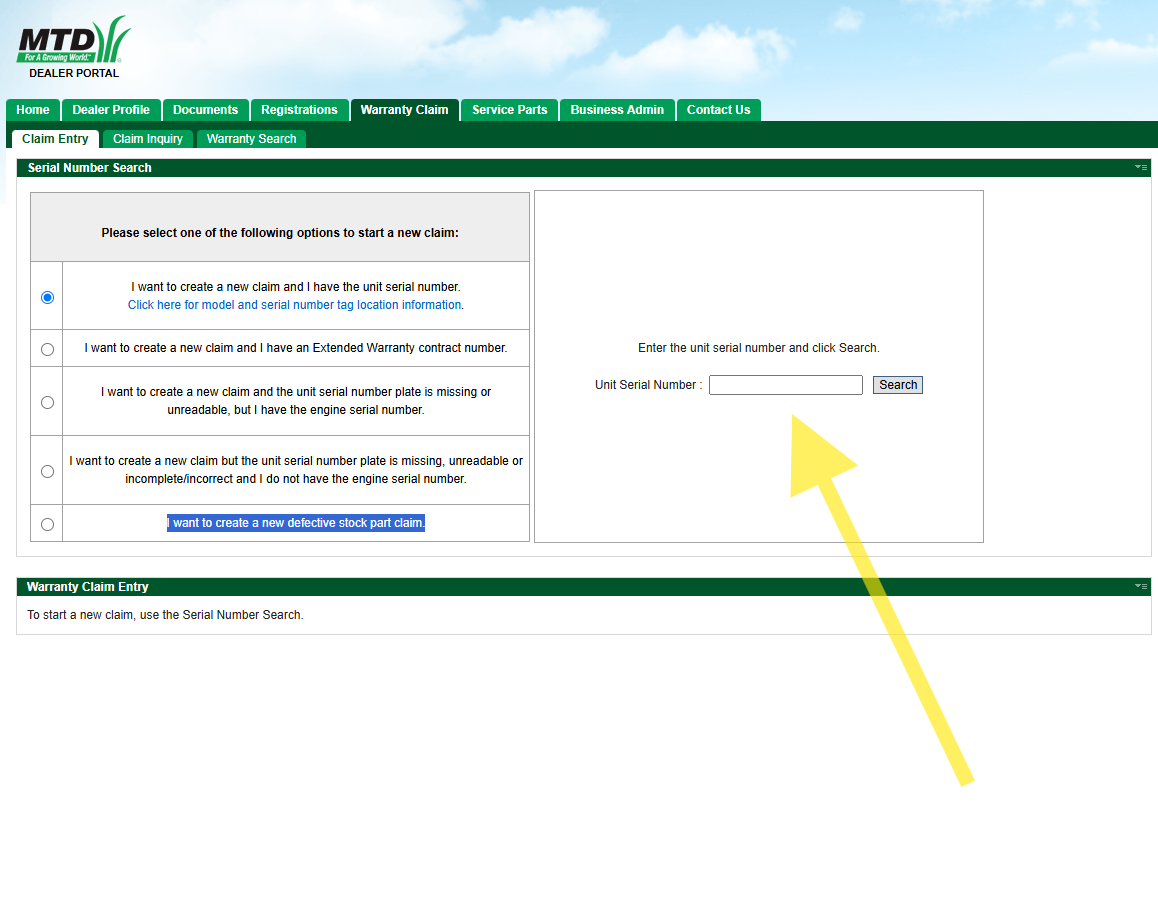
IF you have issues please check the serial number
Fill in the machine serial number. NOTE I and l (lowercase L) look the same but SBD only uses CAPITAL LETTERS. 5 ad S are common to mistake for each other.
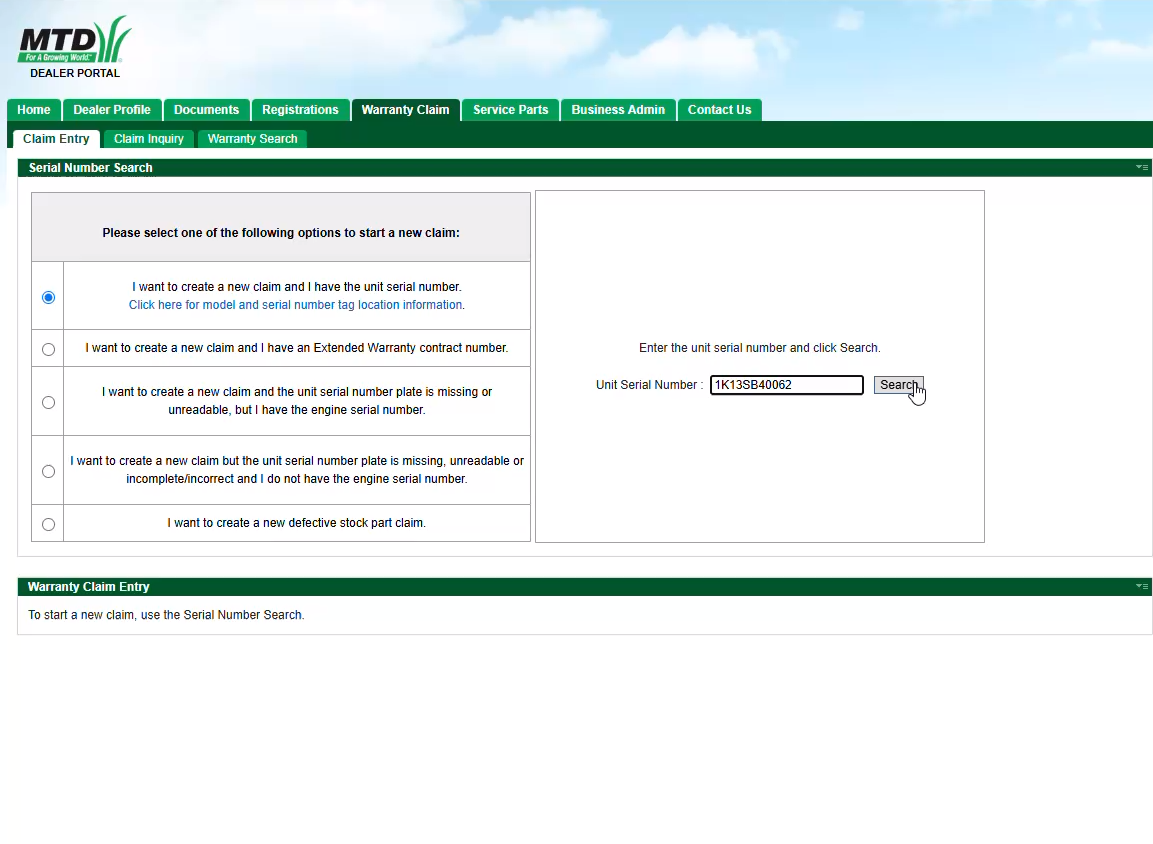
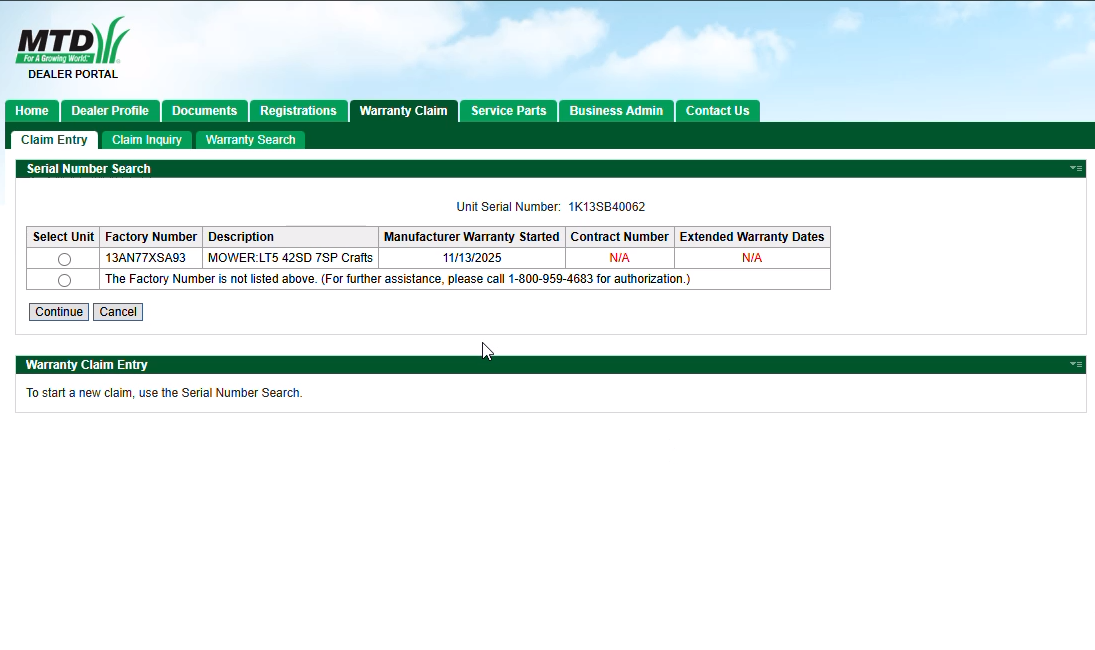
Submitting the serial number will trigger a search and return unit information. Select the option that matches the unit. If there is an issue you can call 1.800.959.4683 for assistance.
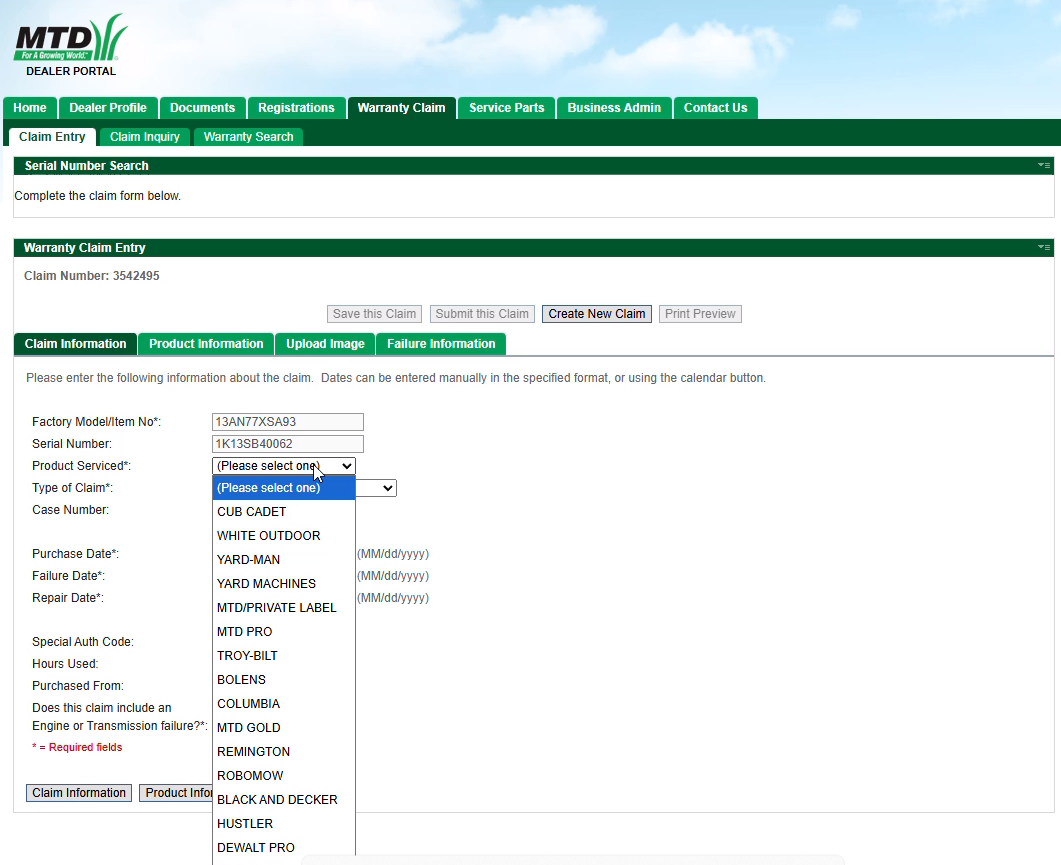
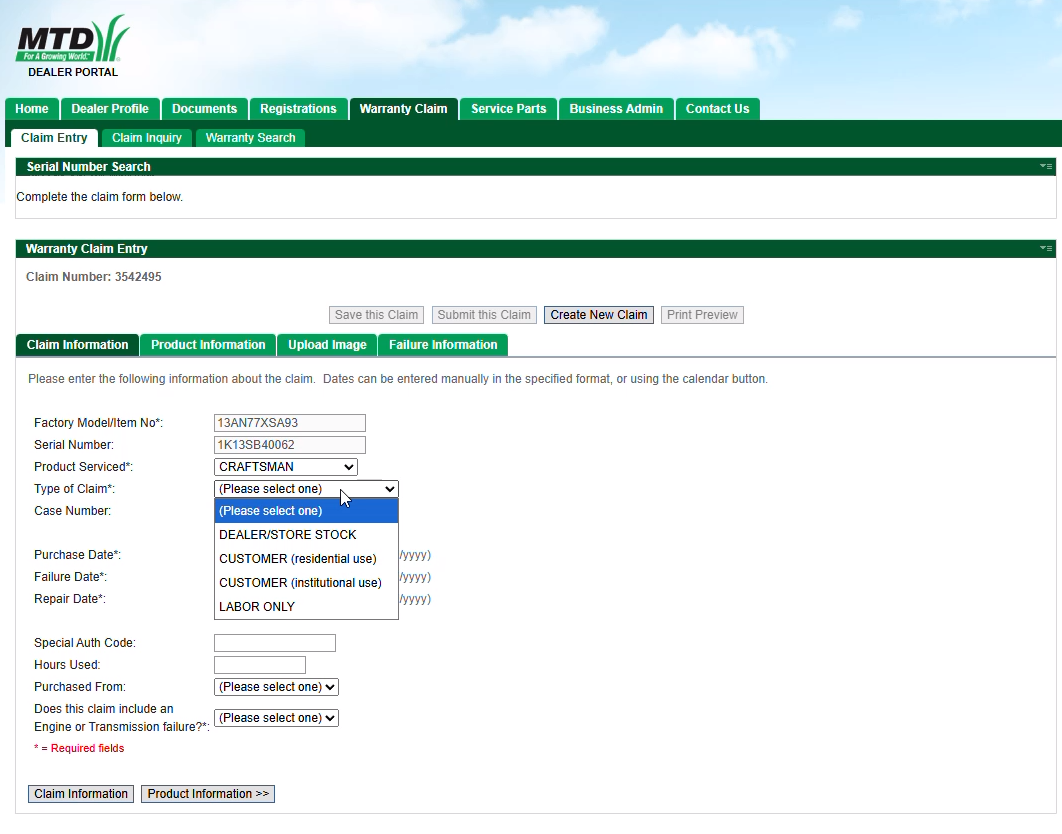
once you hit the continue button you will fill in the claim information including the brand serviced and the type of claim.
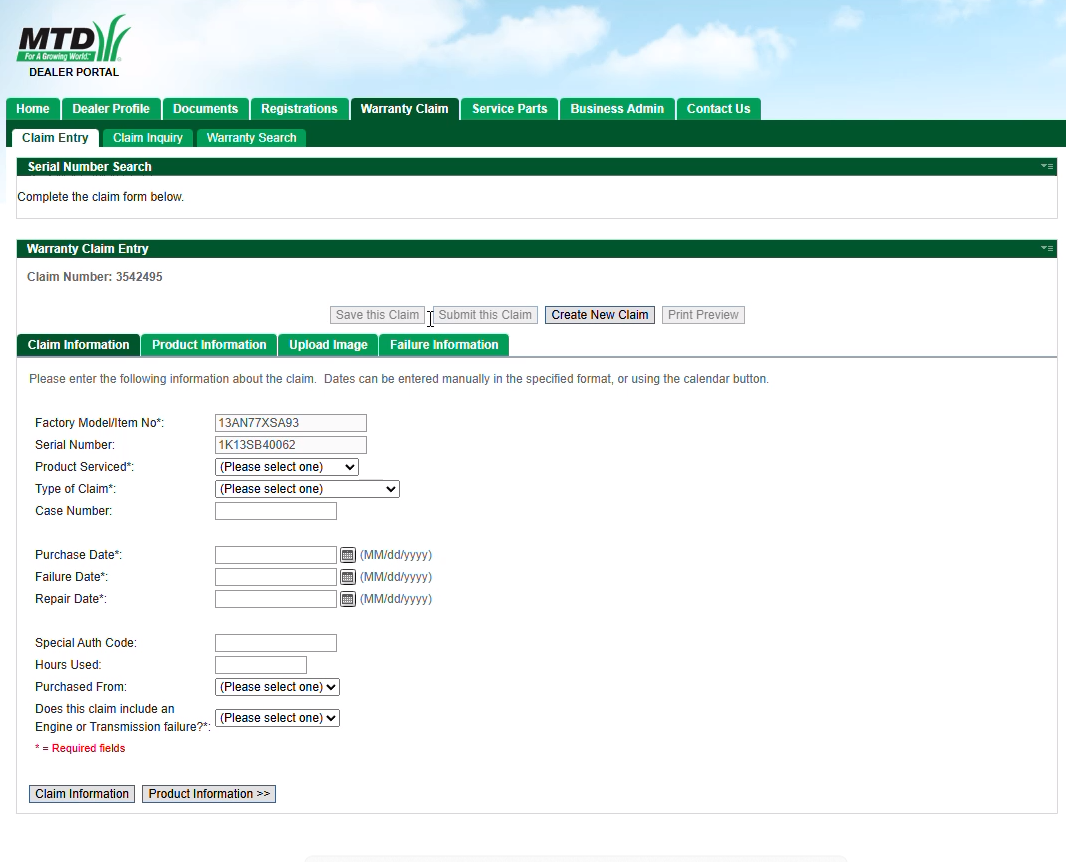
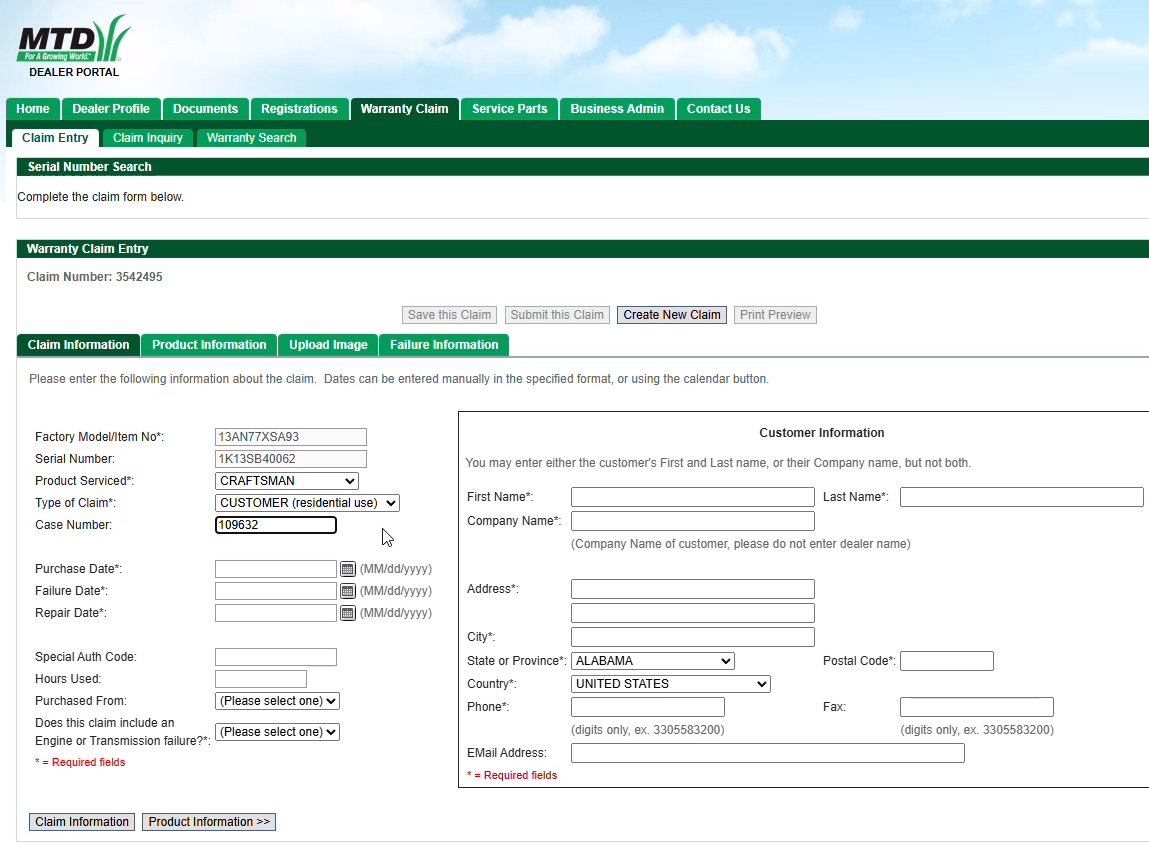
If you have a case number from speaking with SBD or if your Medart Technical Assistance team member gave you a SBD Case# insert it into the field.
If you have a special authorization code for engine or transmission replacement insert that into the box
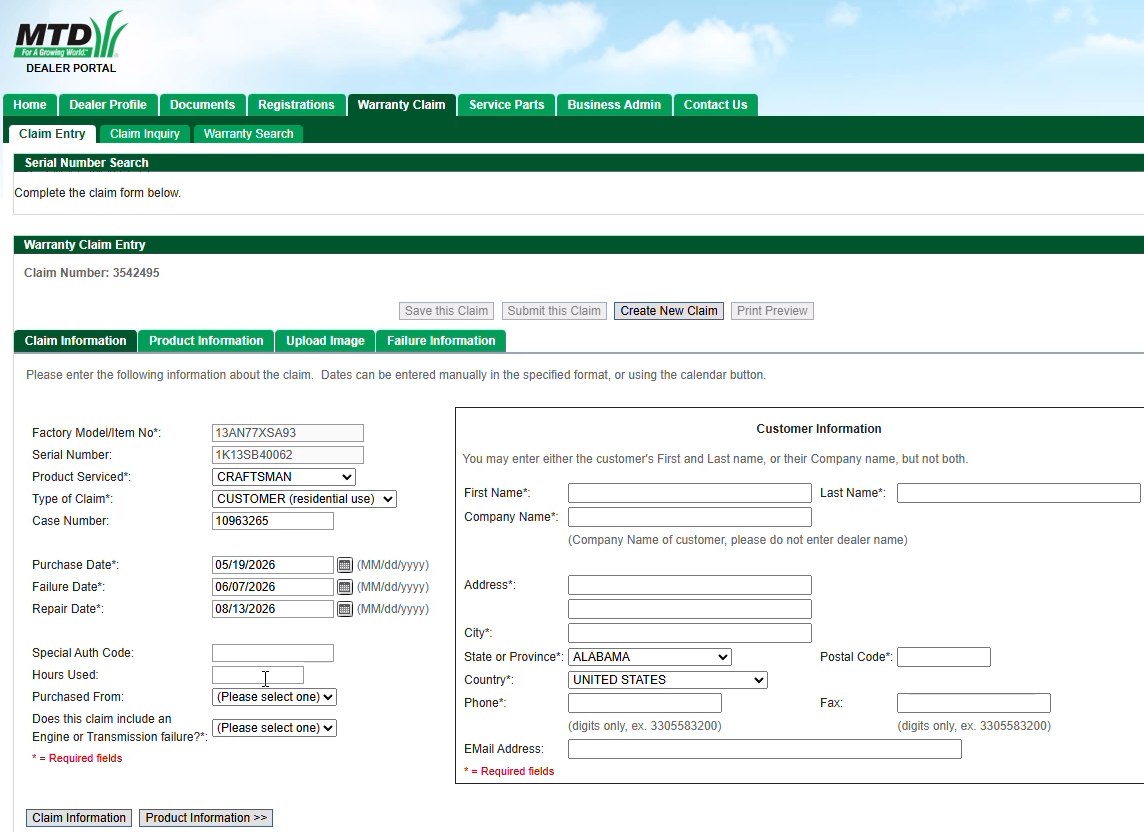
Add the hours used if applicable. If residential 25-30 hours per year is average
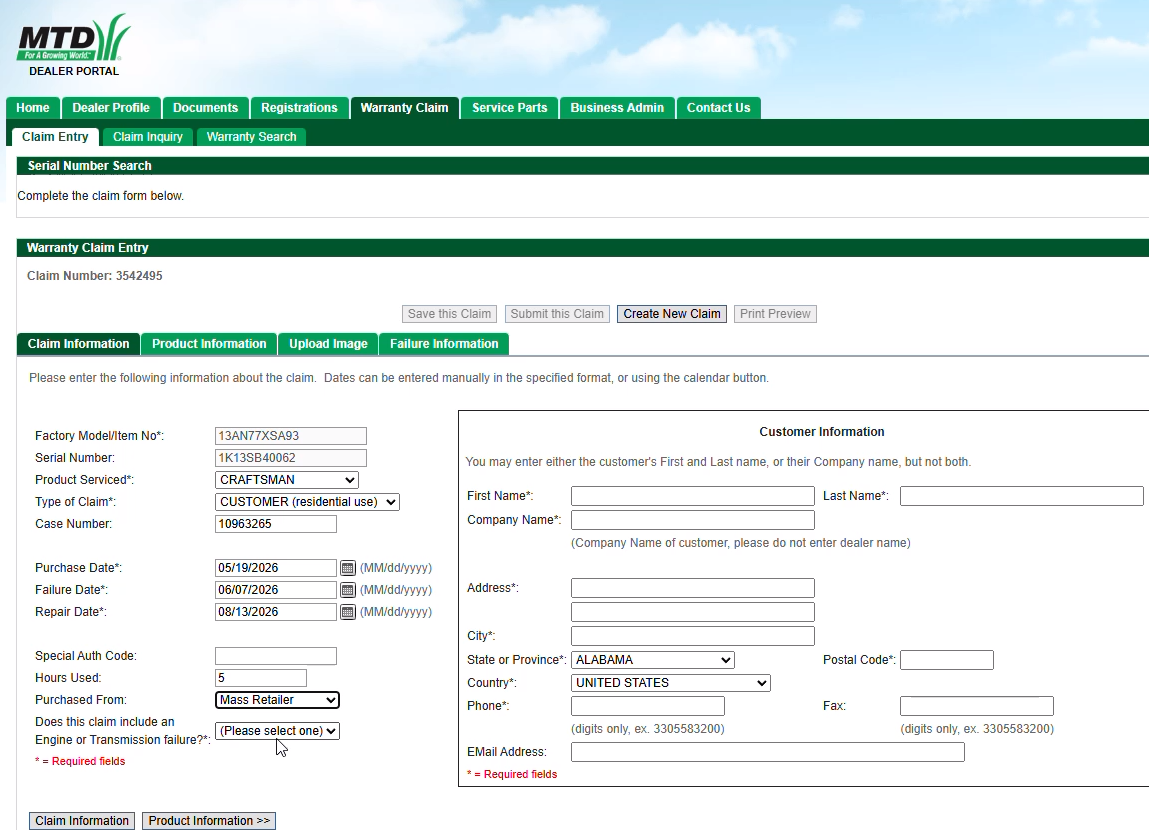
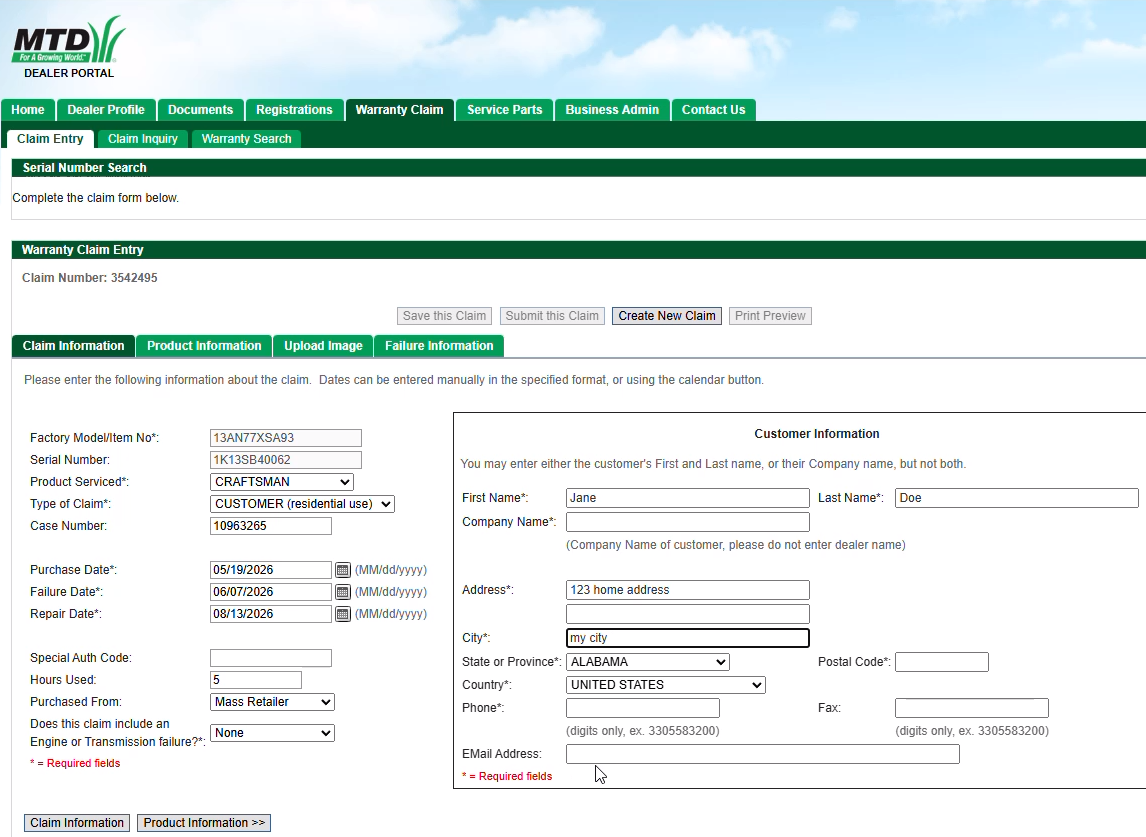
Insert the customer's information
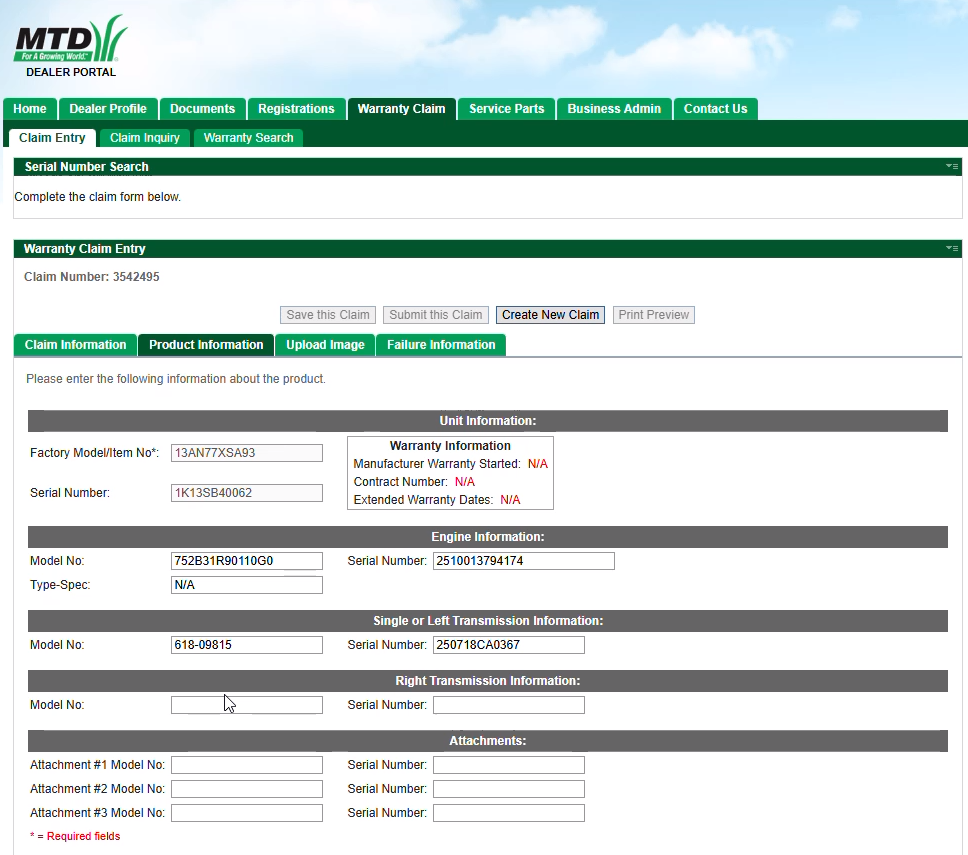
Click Product Information button to move forward. This information is auto populated. If attachments are being involved in the claim you can add them here.
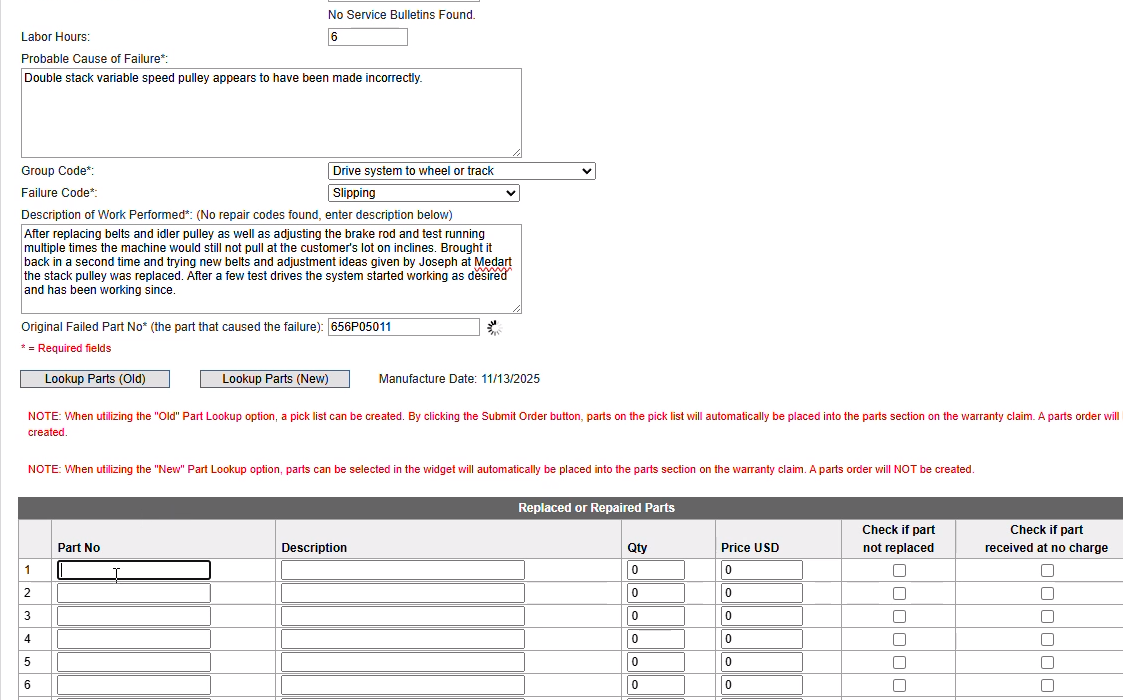
Fill in the Cause of failure as well as the repair notes.
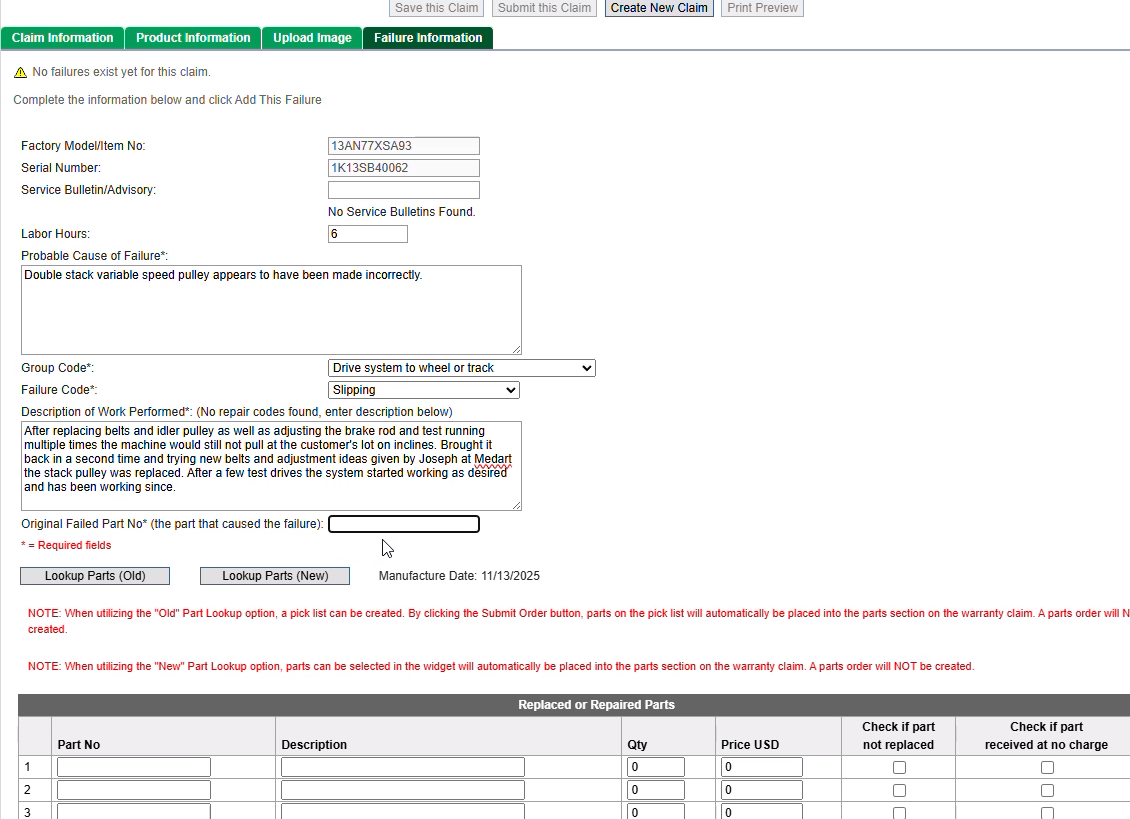
Causal part entry will require a part number. PartSmart is available on MTDTech.com's main page.
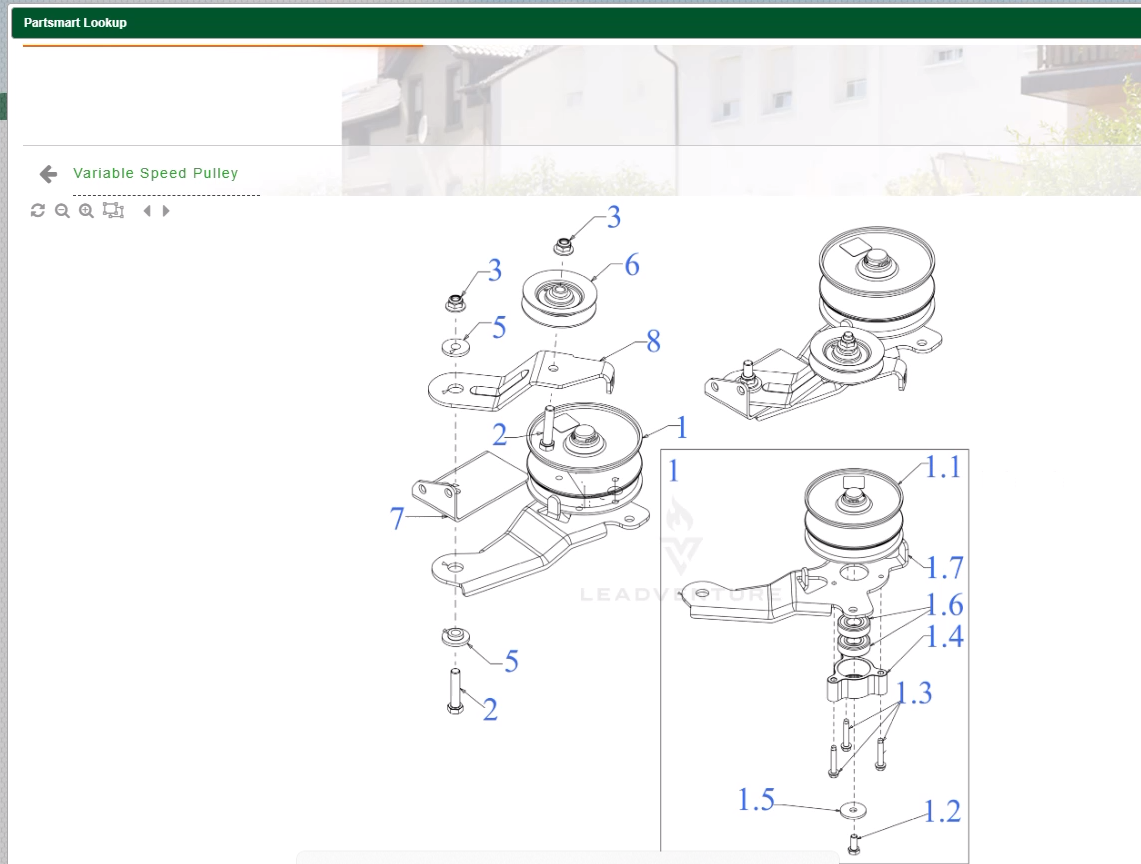
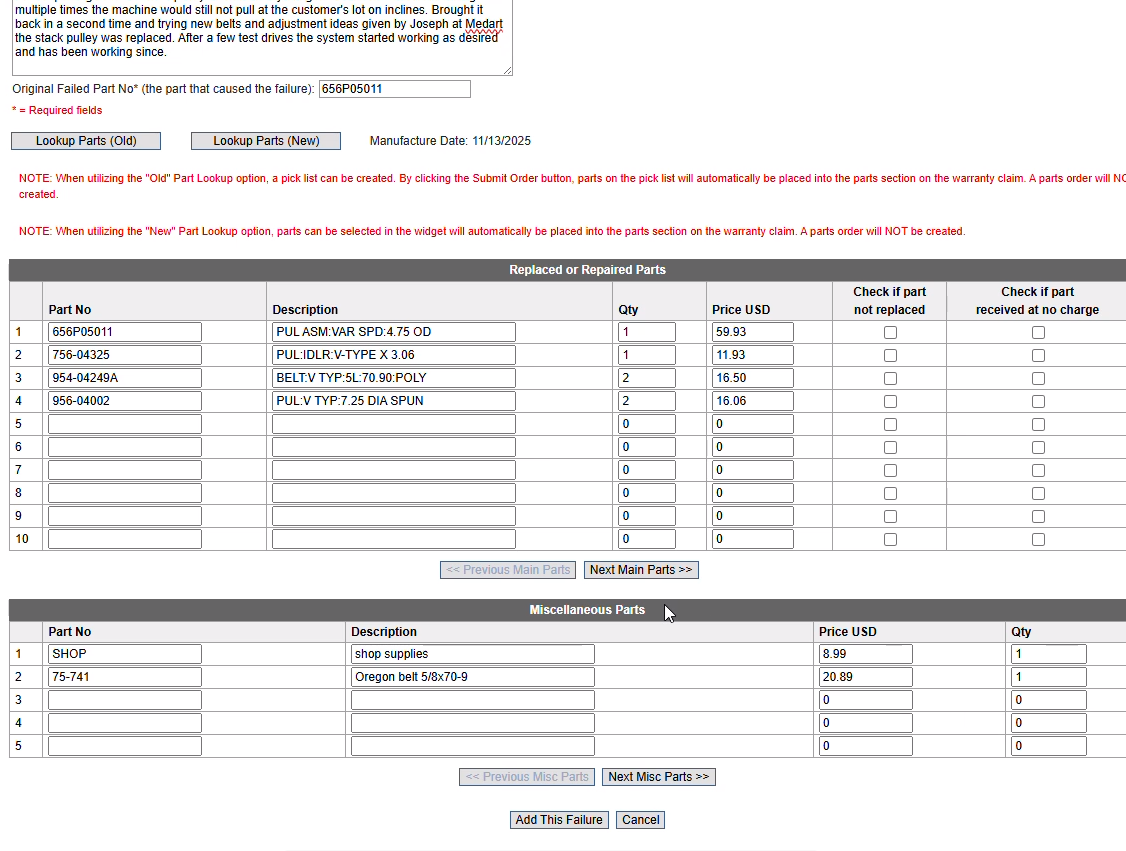
Insert the Causal part number and start listing your parts for the claim as needed
The parts will automatically populate the price and description. Make sure your QTY is correct.
Click the add failure button to review the claim
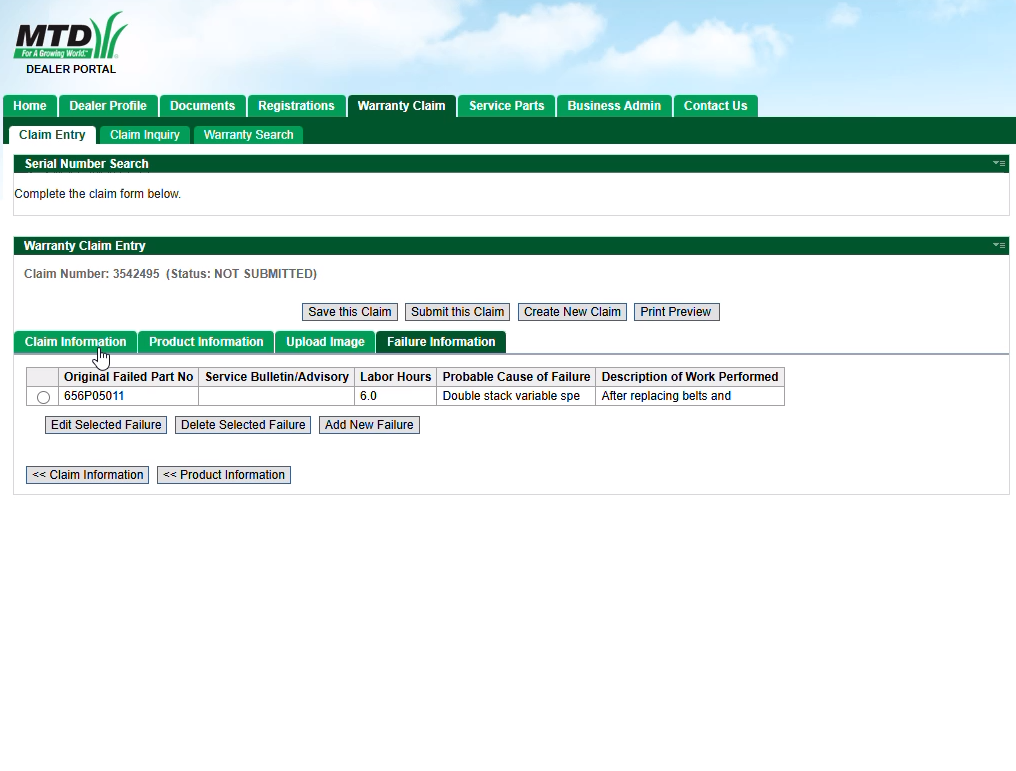
Upload images and submit the claim.
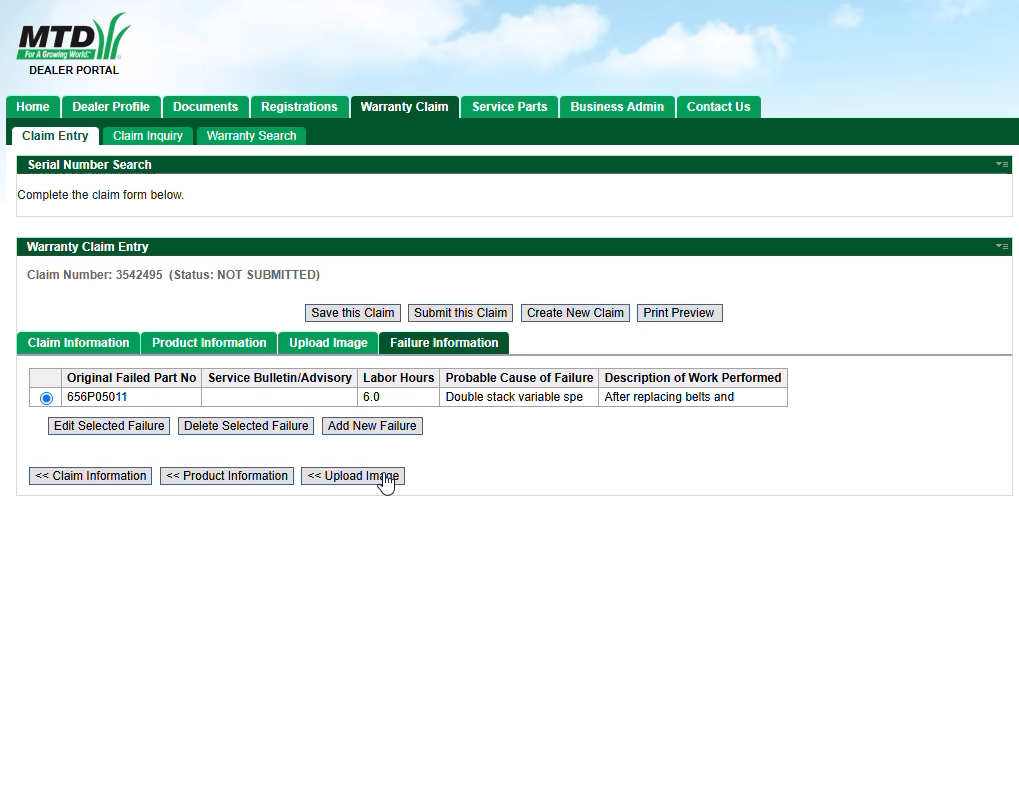
If you need to come back to the claim you can select "Save Claim". This is useful to get claims started before finishing the service. This way the claim just needs checked and submitted.
for more information you can go back to the main article here